Reducing the Overwhelm: Ideaflip's Launcher Launches
At Ideaflip, we love ideas - I mean, we really love ideas. But occasionally, just occasionally, we can find we have a few too many?
You know the feeling - there's just too much good stuff, and you can't quite work out what you and your team should focus on.
Of course, organising and prioritising a big list of things is something an Ideaflip board is perfectly suited to - but nonetheless it can still be tricky to manage lots of sticky notes - especially when you want your team involved.
Well, we're very excited to launch Ideaflip's latest new feature to help in exactly these sorts of situations: the Launcher.
The Launcher
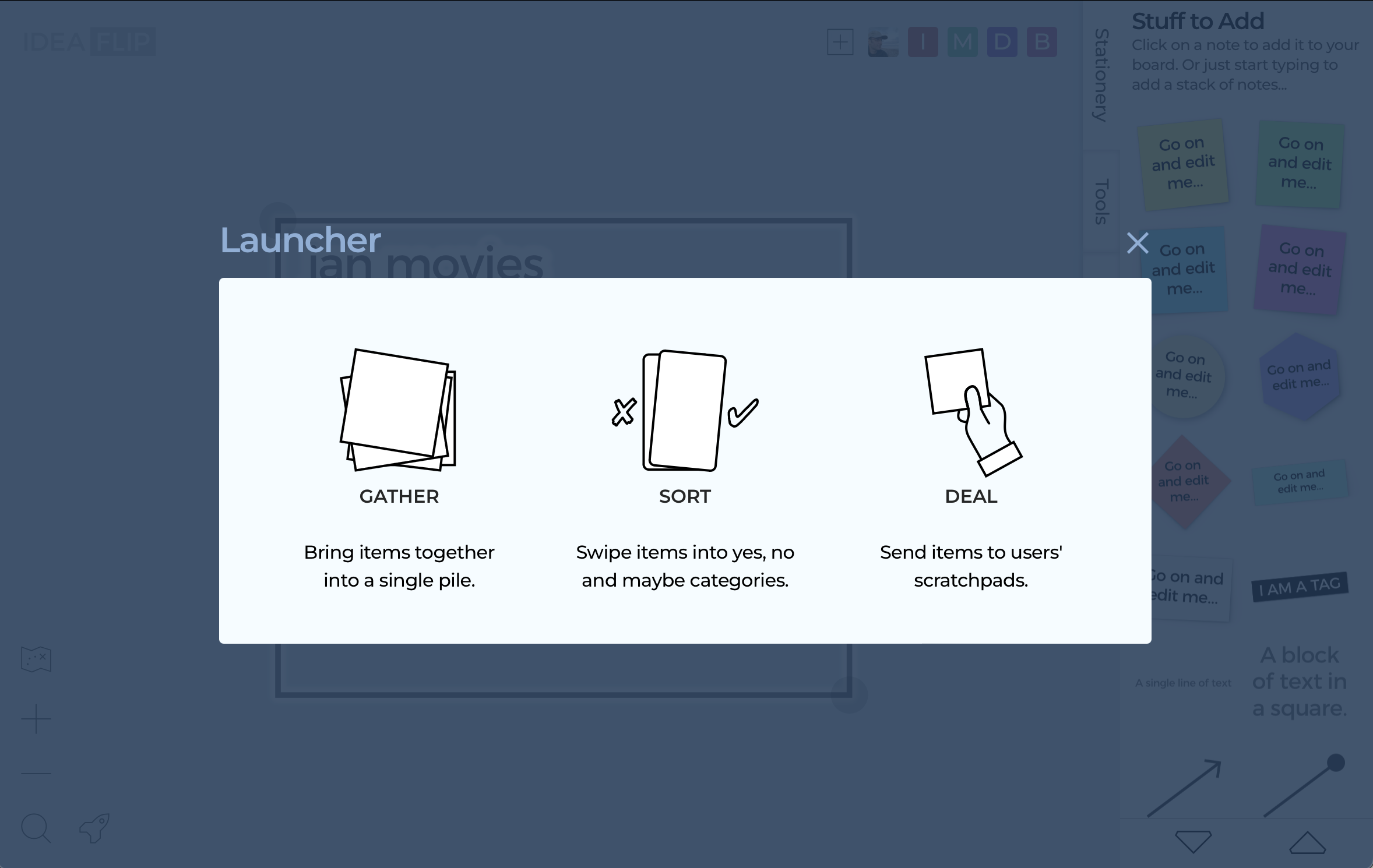
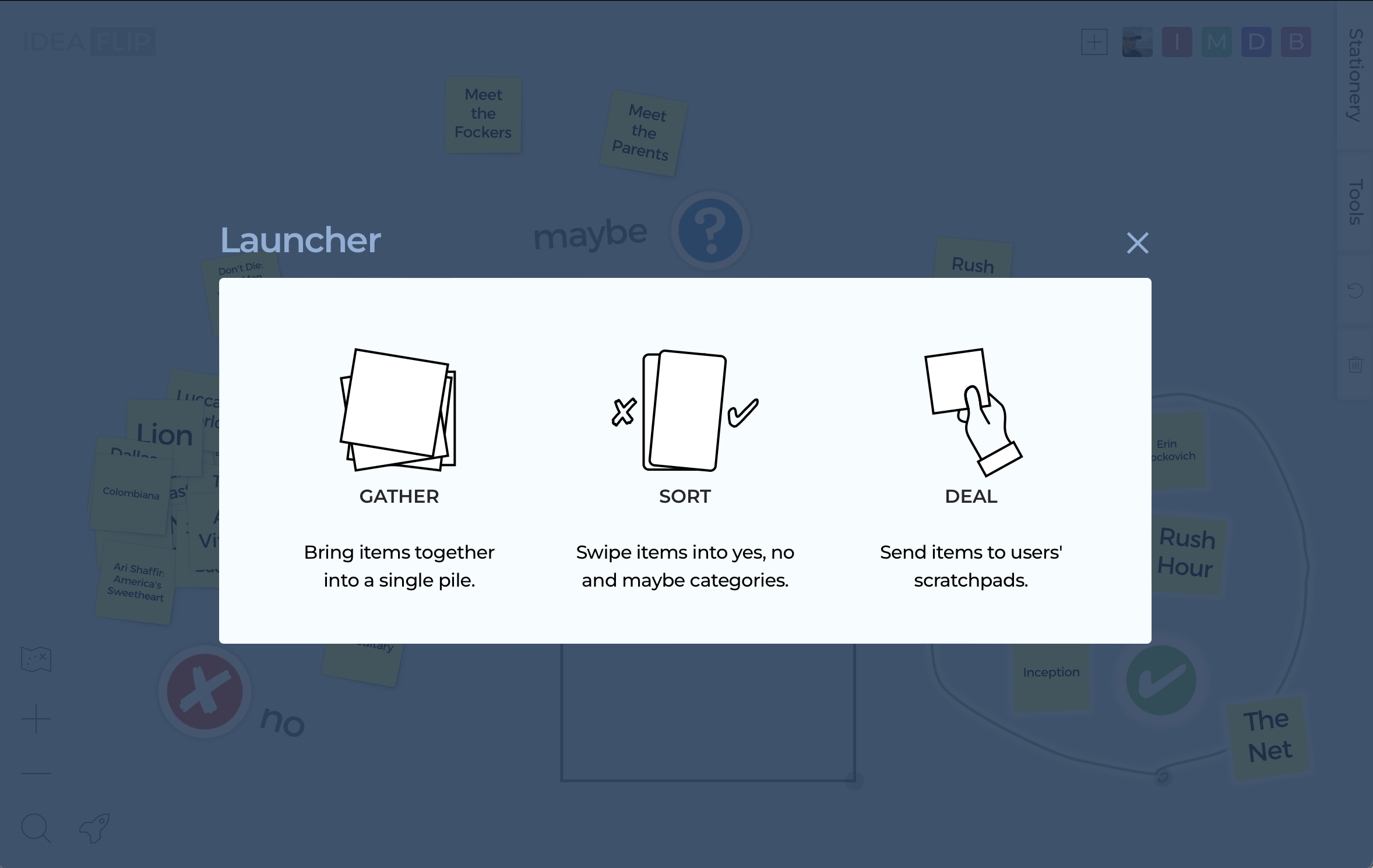
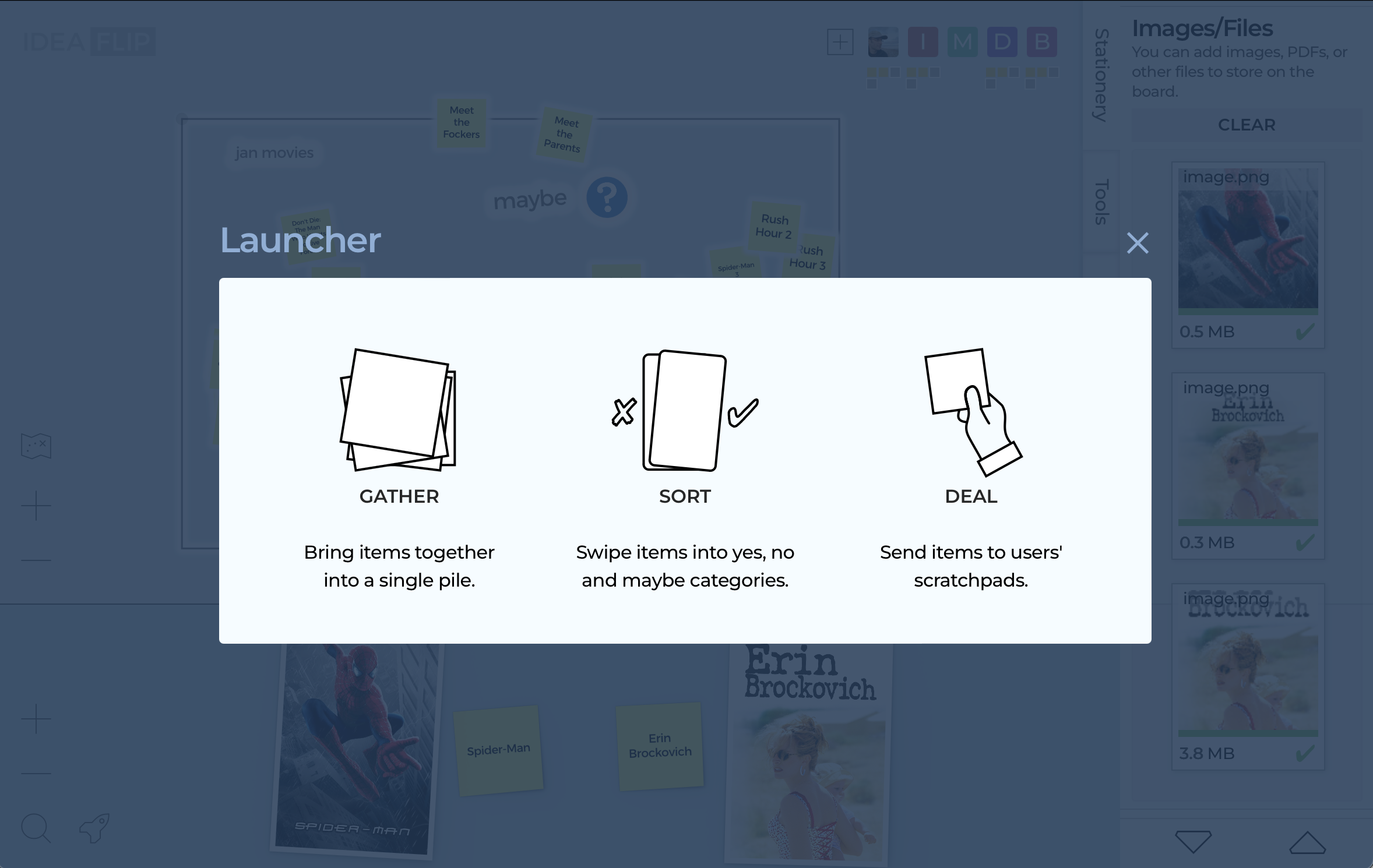
The launcher is a new Ideaflip tool that allows you to work more quickly with lots of sticky notes. It provides three different ways to help:
-
Gather - quickly bring all the selected notes into a single pile
-
Sort - swipe your way through the selected notes to give them a yes, no or maybe verdict
-
Deal - distribute notes to each person's private scratchpad, allowing them to concentrate on a few at a time
To access it, you select the notes you want to work with and then tap on the rocket 🚀 icon to launch the launcher.
Rocket-fuelled Team Decision Making
Let's see how Ideaflip's launcher helps with quickly whittling down a pile of sticky notes. In this walkthrough, we're going to use an example that'll probably be all too familiar to many of you: working out which movie to watch on Netflix¹.
¹other streaming platforms are available
Create a Pile of Sticky Notes
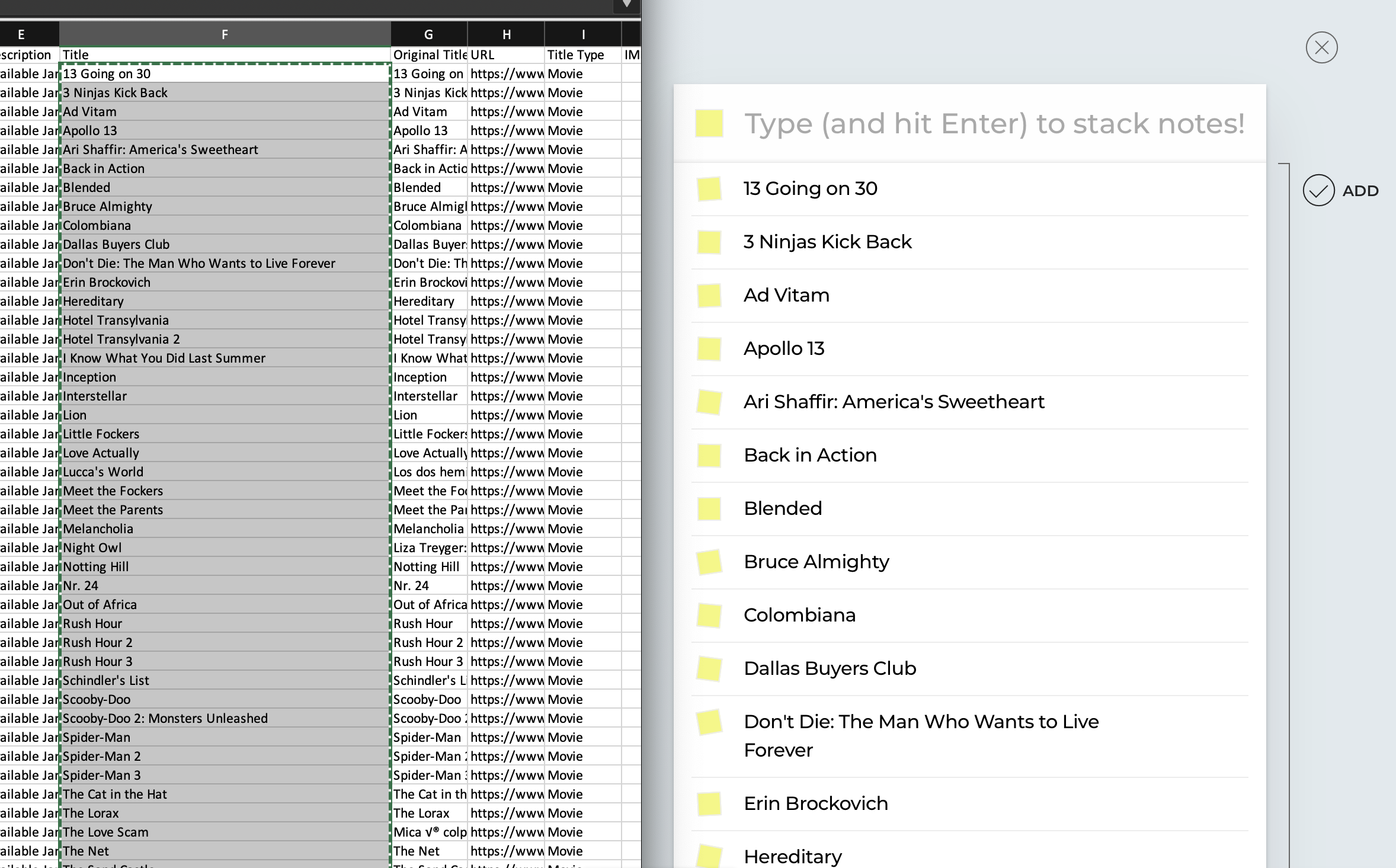
Let's start by building up a pile of notes - one for each movie. We could do this one at a time, but IMDB has a list of new releases and, what's more, lets you export it as a CSV from the Actions menu in the top right hand corner.
Opening the downloaded file in Excel² we can sort by the Title Type column so that all the Movies are together. Then if we select all the movie titles from the Title column we can copy them and switch to an Ideaflip board and paste them. This will open the Quick Entry screen where we can click on the Add button to drop them all onto the board as a pile of notes.
²other spreadsheet programs are available
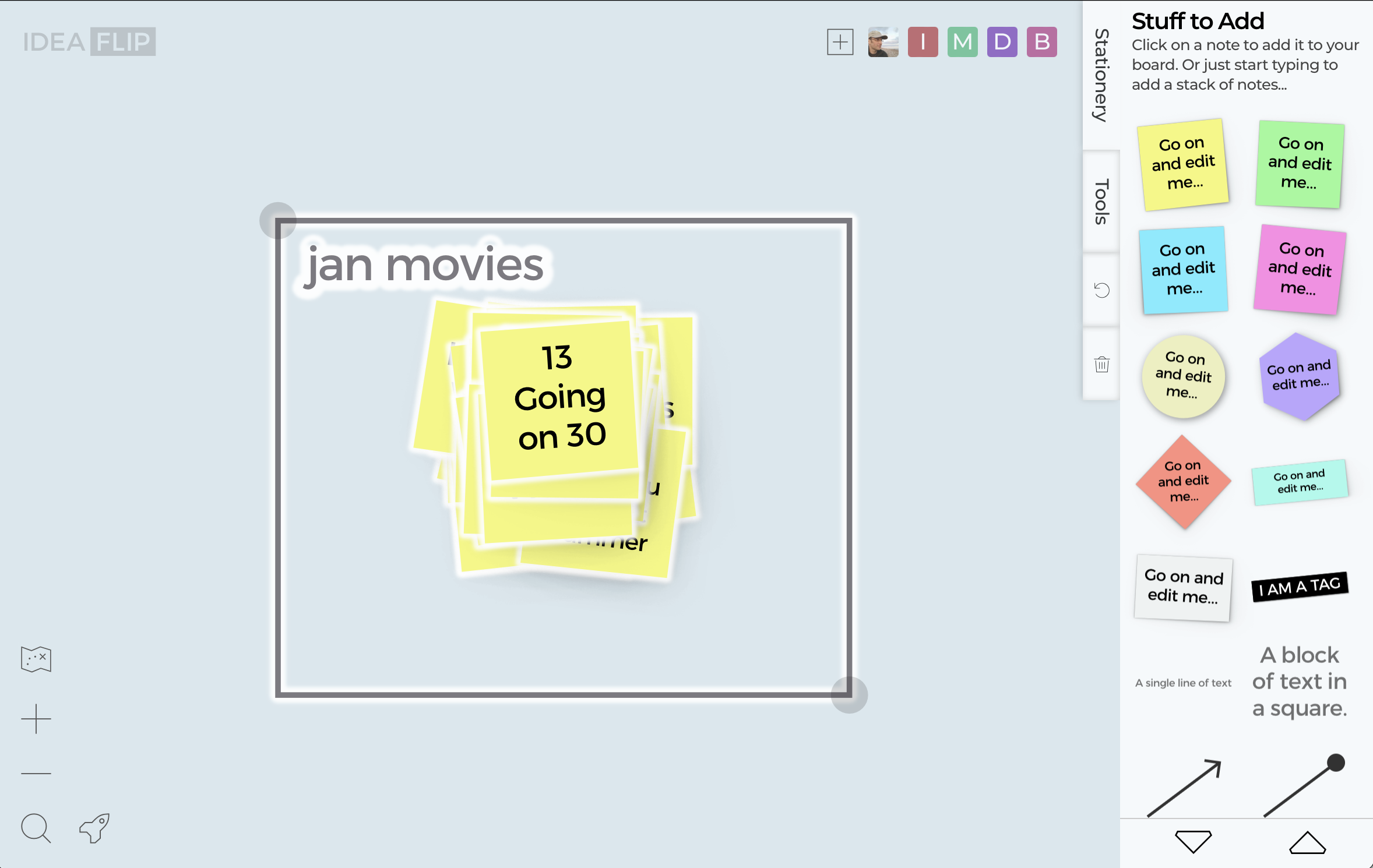
Next we draw a group around the notes - either by adding one from the stationery drawer on the right, or by pressing and holding on the backdrop and dragging it around the pile. Tapping on the group will select all the notes that are inside it - and this will cause the launcher rocket to appear in the bottom left-hand corner of the board next to the search magnifying glass.
Swipe Sorting
Tapping the rocket will open the launcher - and we're going to tap on the SORT icon. This opens a swipe sort over our board.
You may be wondering what a swipe sort is? Well, you've probably heard of "swiping right" made famous by dating apps? Soo, it's a bit like that.
What Ideaflip's swipe sort will do is show you each of the selected sticky notes, one at a time, with the ability to accept (swipe right) or rejct it (swipe left).
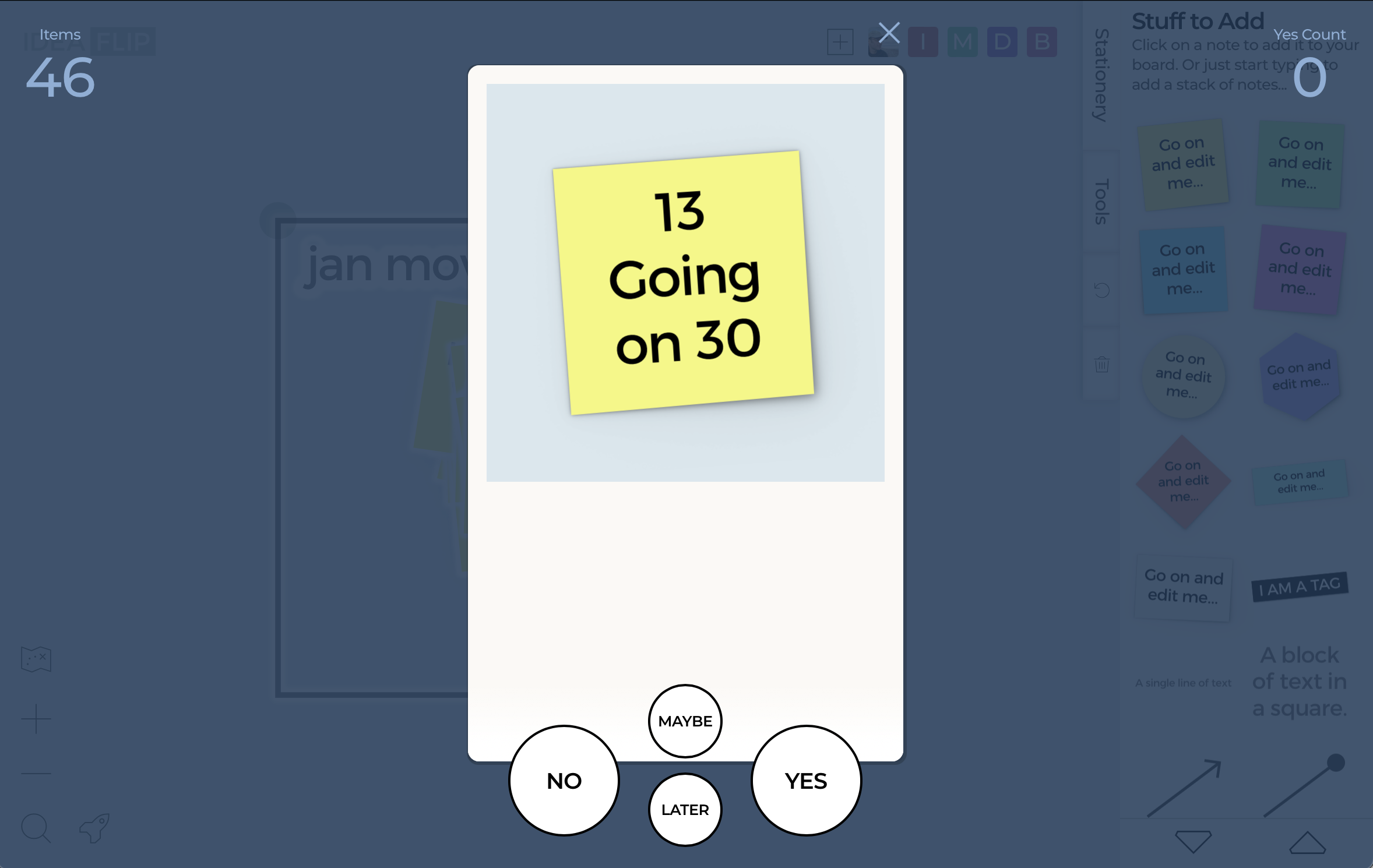
In our example, we're shown a sticky note with a movie name, and we can decide whether we'd like to watch that movie or not. The round buttons at the bottom can be used to just click NO or YES, and have the same effect as swiping.
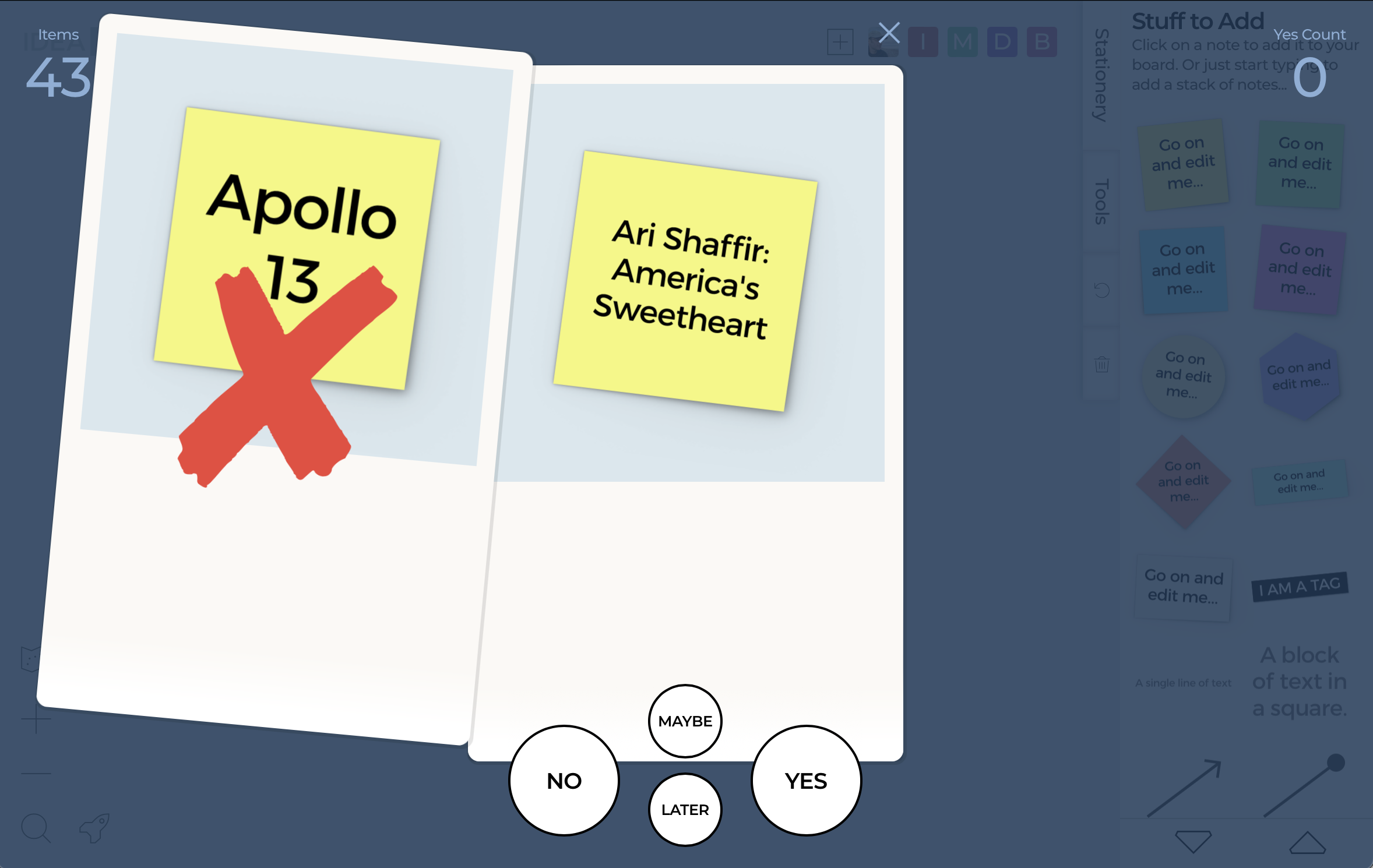
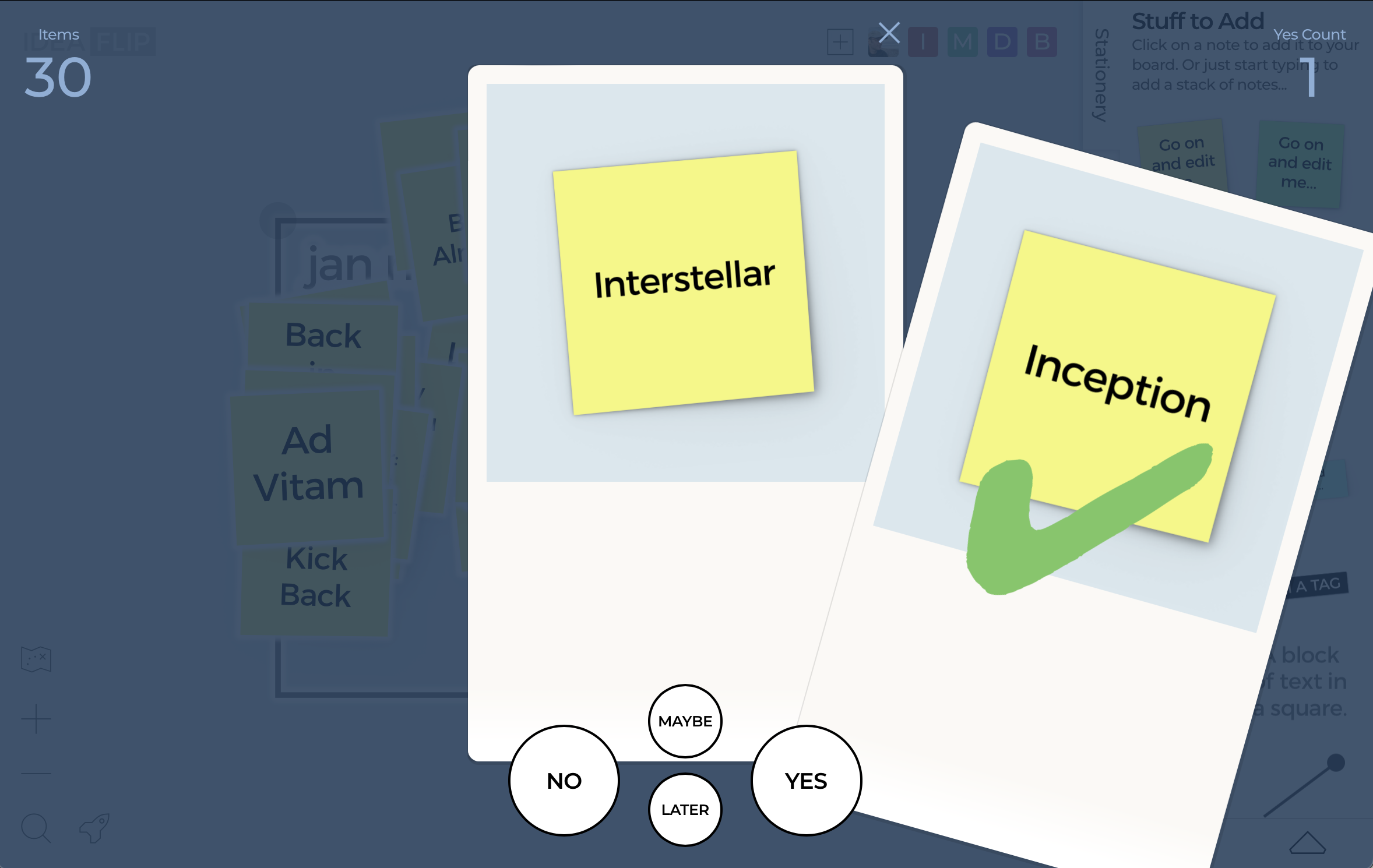
And because not everything in life's binary we've added a couple of other options too:
-
pressing MAYBE gives the option of expressing no preference for a note - this can also be done by swiping upwards
-
and if you can't decide immediately, pressing LATER or swiping down will put the note to the back of the pile of notes, ready to be looked at again later
There are also counters showing how many notes are left in the pile (in this case, 46 movies) and how many you've said yes to - in case you have a target to meet.
After we've worked our way through the whole pile, the swipe sort will close and show you the results on the board.
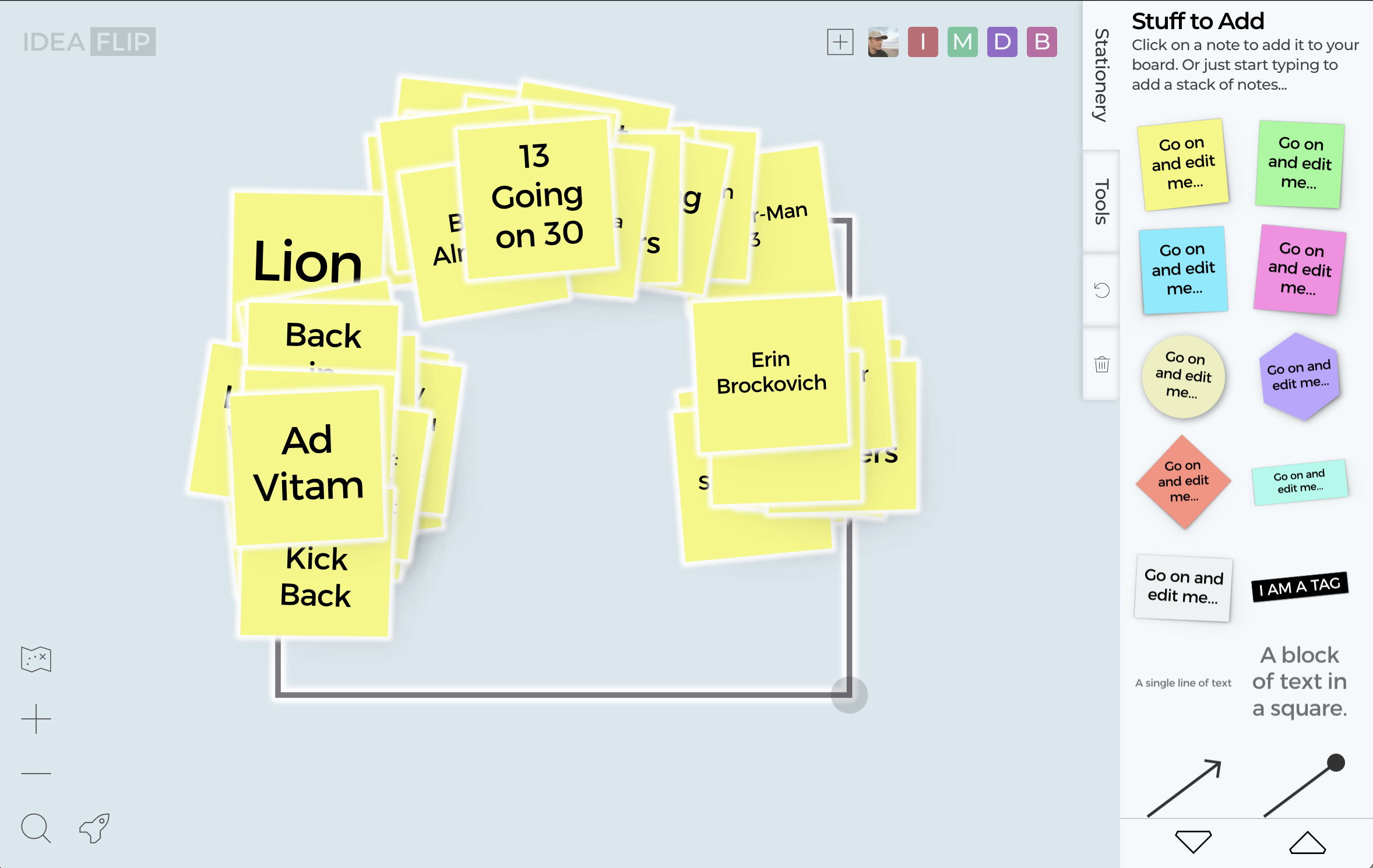
The notes will be clustered into three different piles: yes on the right, no on the left, and maybe at the top in the middle.
You may be wondering why these aren't completely distinct, neat, piles. If you use the buttons, they will be - however, when swiping, Ideaflip also keeps track of the direction of your swipe. This allows you to add more nuance to a yes or no decision by, for example, swiping more upwards if you're unsure.
Seeing Group Priorities
Hang on though - these are just one person's preferences for movies to watch - we want to choose as a group!
Well, the great thing about Ideaflip's swipe sort is that everyone on the board can sort at the same time and everyone's decisions will be combined.
How does that work?!
Good question - if two people choose 'yes' then that means that the note will be moved twice as far to the right as just one 'yes'. And if two people both choose 'no' for the same note then it will be moved twice as far to the left.
If one person chooses 'yes' and one 'no' then these decisions will cancel themselves out, and the note will remain more or less in the middle. If a 'maybe' decision is combine with a 'yes' or a 'no' then the note will be moved diagonally upwards (either to the right or the left respectively).
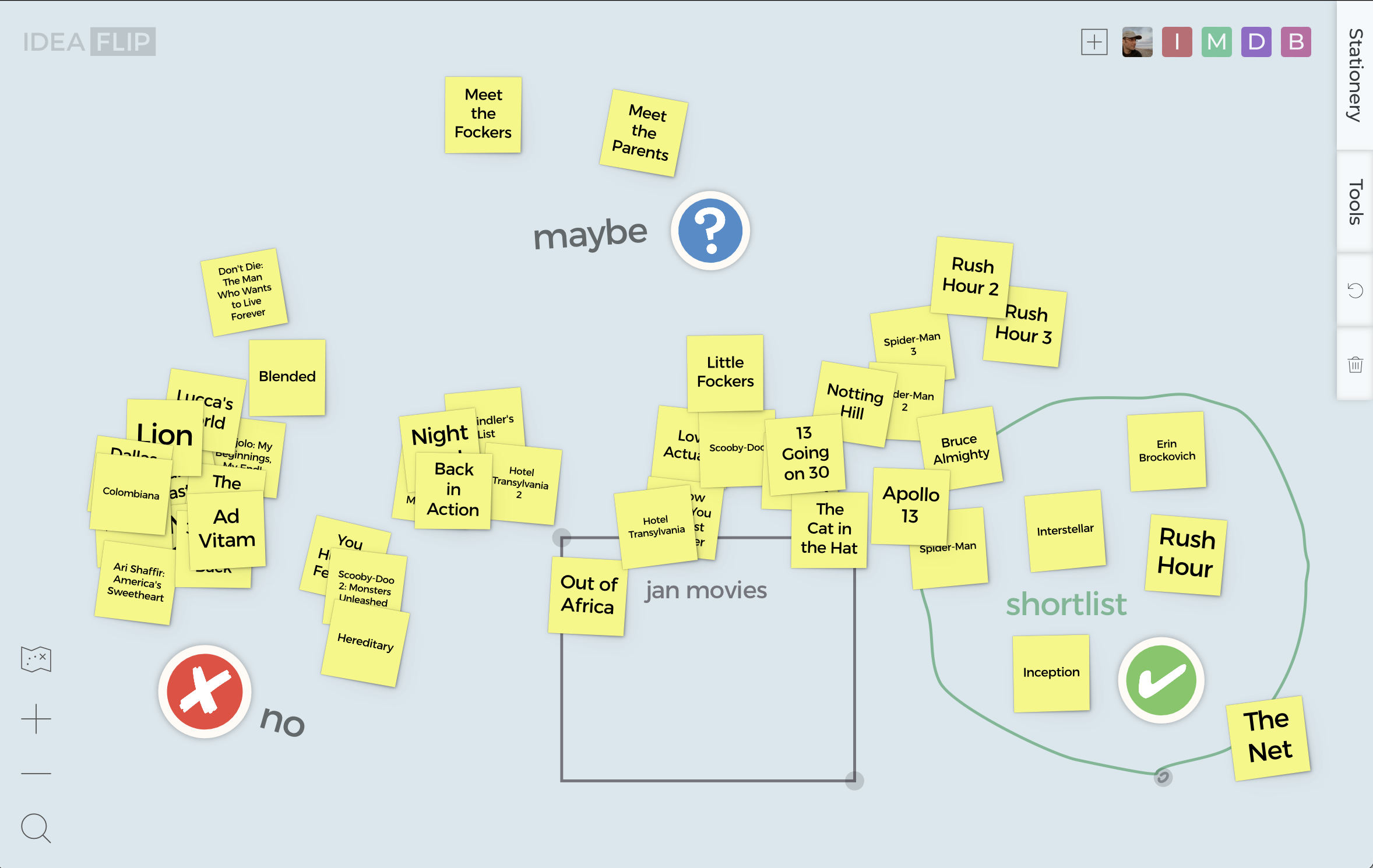
So if we invite our friends to the board and get them to use the launcher to start sorting through the list of movies, we'll eventually end up with a board that looks a bit like this:
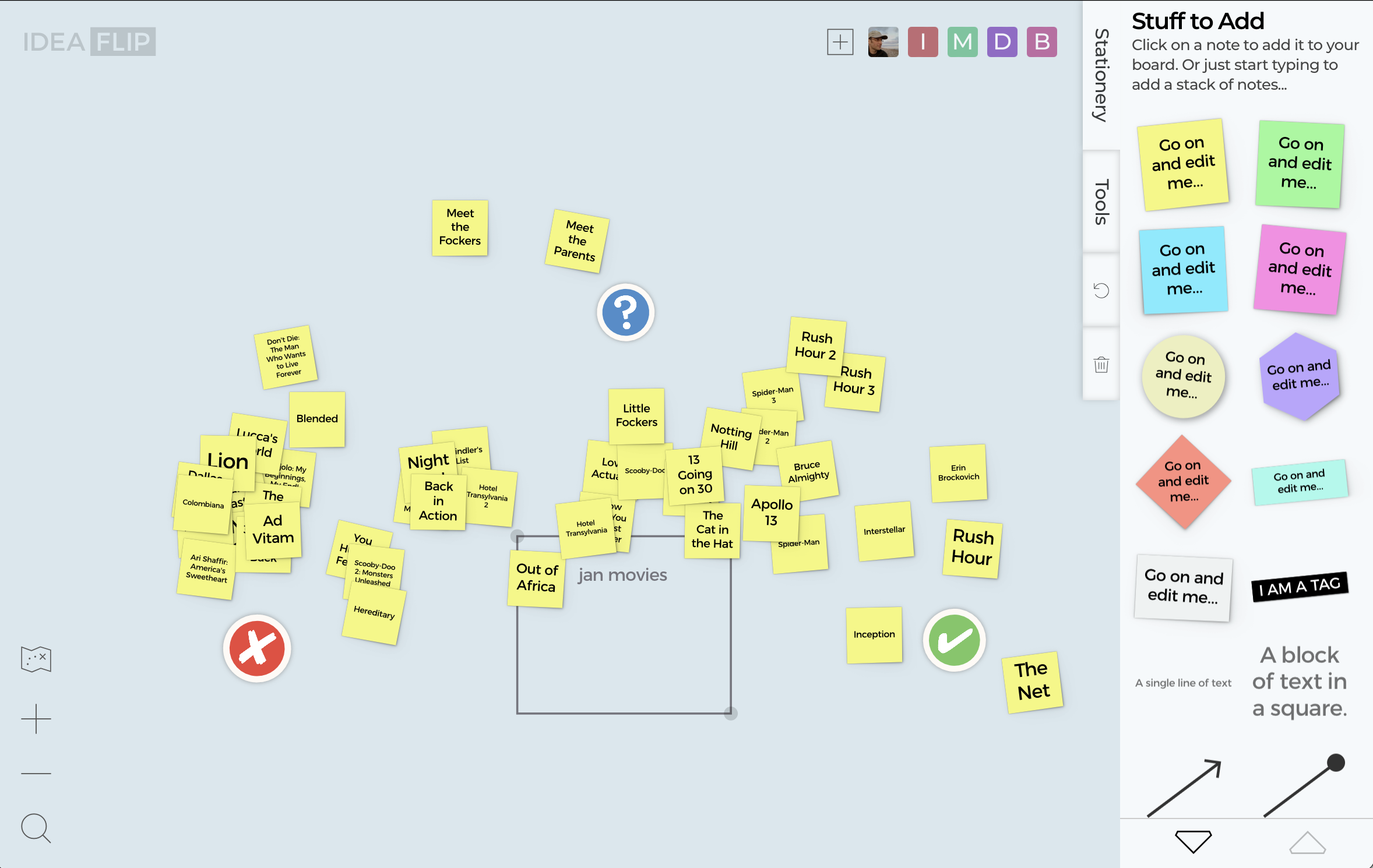
On the right-hand side we can see some strong favourites - and to the left movies that have been rejected by several in the friendship group. And because folk were using the 'maybe' choice, some are spread further up the board, indicating increasing uncertainty (or perhaps no opinion).
Interestingly, notes that are still in the middle (but lower down) are likely to indicate a disagreement - approximately the same number of the group voted 'yes' and 'no', with no or few 'maybe's and so it ended up back in the middle.
So from a quick glance, it looks like there's a difference of opinion over Out of Africa but that The Net is the runaway favourite. We could end our Ideaflip session now and go and settle down with our popcorn, but one of the group would like to create a shortlist for the whole month - and ideally with movie posters...
Divide Up the Work
We could delegate to one of the group the task of searching for each of the movie posters in turn - but, it'd much quicker if there was a way to allocate each person a few of the movies and then we could all search for posters at the same time.
Luckily that's a good opportunity to show off another of the launcher's useful features. (What an amazing coincidence!)
We're going to start by drawing a group around the notes that are the furthest down and to the right. To do this, we press and hold on the board somewhere below the notes and then use the lasso-type select to draw around them.
We then tap on the group to select it and tap on the rocket to open the launcher.
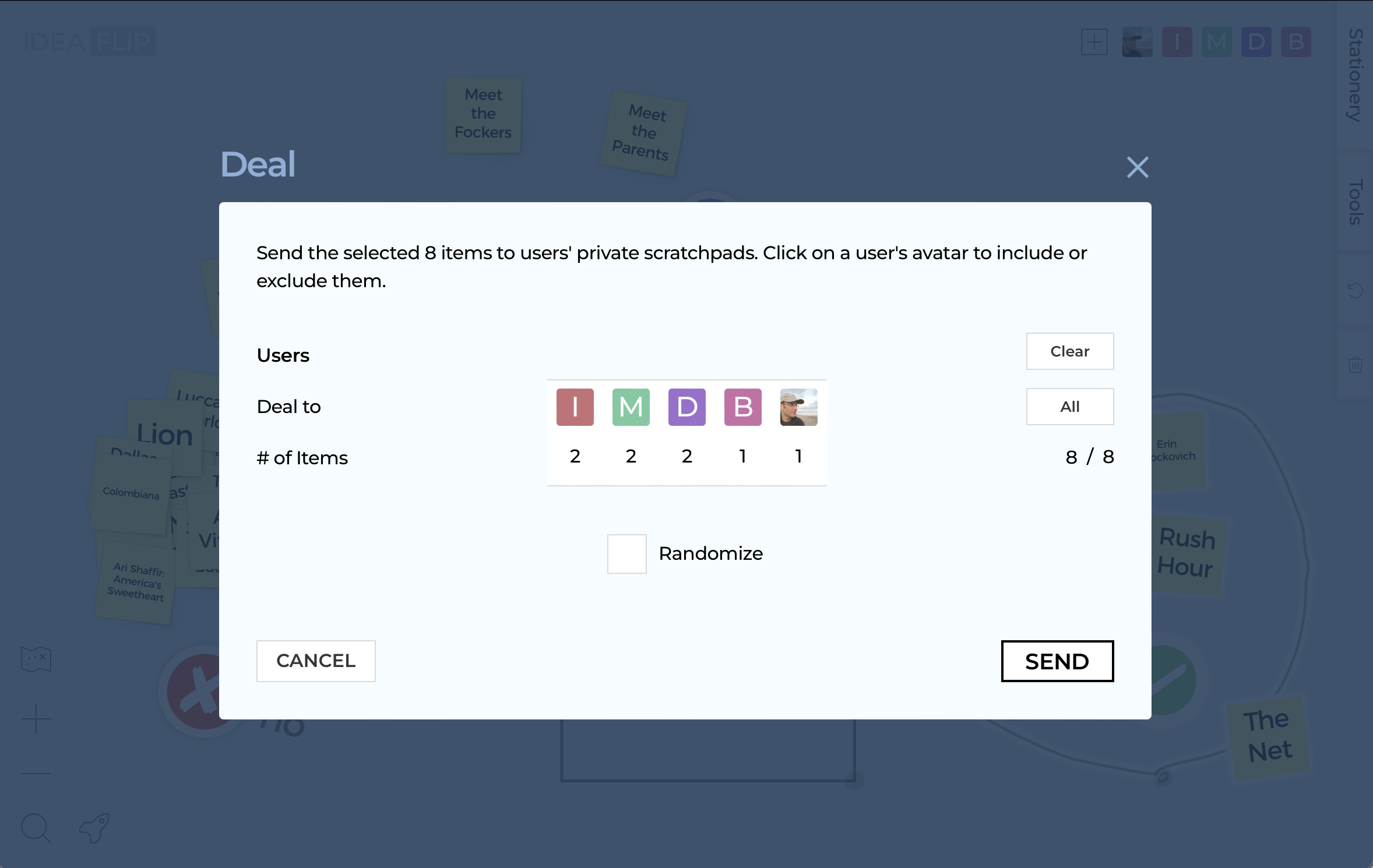
This time, we choose the DEAL option. This makes use of Ideaflip's private scratchpads. If you're not familiar with these, they're like a separate mini-board that isn't shared with the other users. You can find out more about private scratchpads in our silent brainstorm post.
The deal option simply allows you to distribute the selected notes to the users on the board's scratchpads. A bit like, err, dealing cards across a table.
The deal screen gives control of how this done - firstly you can see how many of the notes each user will end up with. And secondly you can pick who will be dealt to, if one of your group wants to head off to make the popcorn, for example. Note that excluding someone from the deal, by tapping on their icon, re-adjusts the count of how many items each person will receive.
There's also a randomize option, which will shuffle the selection before dealing them (otherwise they are dealt in front-to-back order, like a deck of cards).
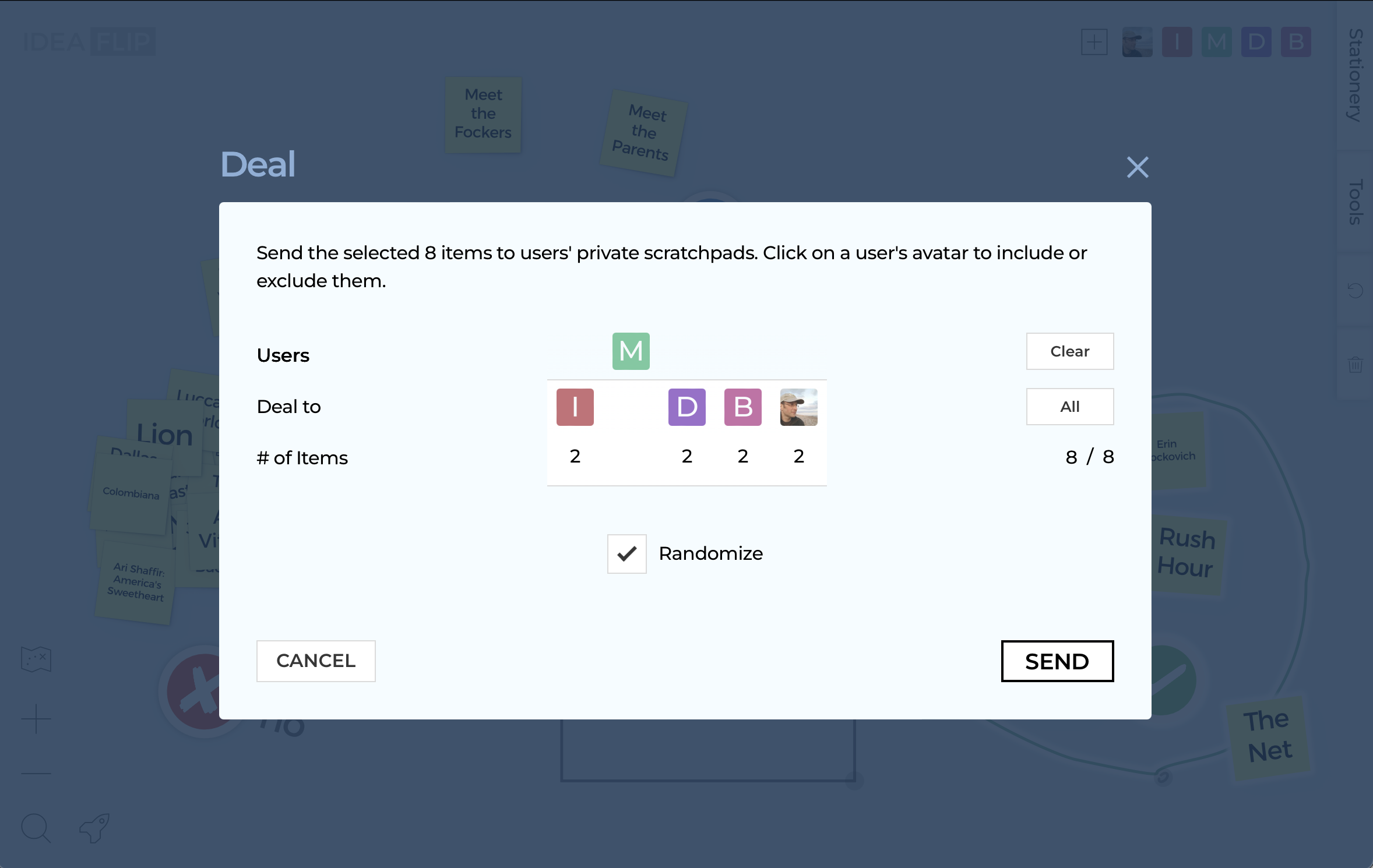
Pressing SEND (to scratchpads) will leave the board looking like following. The notes that were in the shortlist group have been removed and sent to each of the other board users. The little yellow squares under each user's avatar give an indication of who's got notes in their scratchpad.
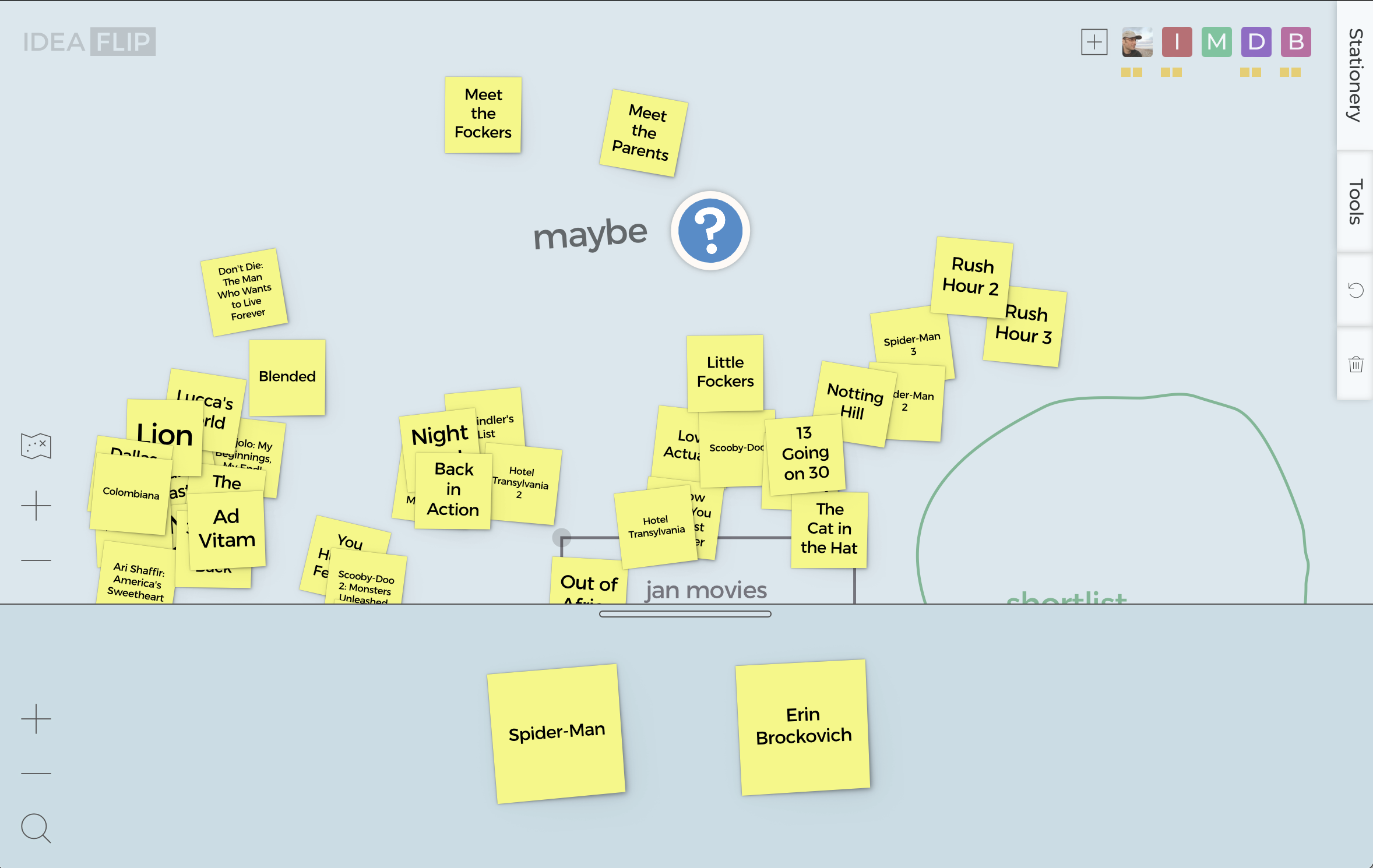
Now everyone can go off and search for the movie poster that corresponds to the notes that they were dealt. Much quicker than one person having to do the job - and using the random allocation is fair and fast too.
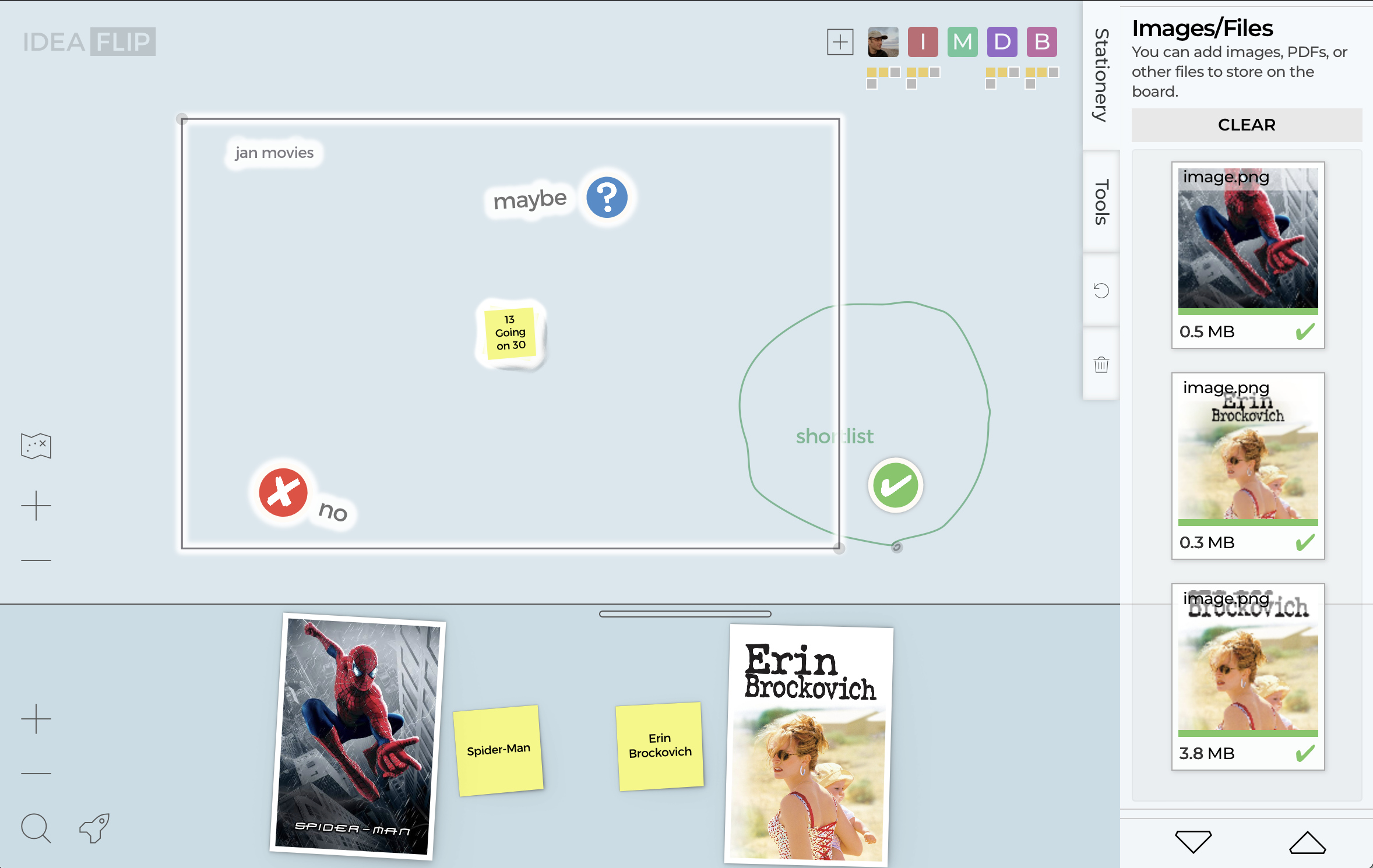
Each member of the group can upload the picture to their scratchpad, either by downloading the image file and dragging and dropping it - or simply by copying the image and pasting with their cursor over the scratchpad at the bottom of the screen.
When everyone has found the best posters for the movies they were allocated, they can drag them back on to the board. You can tell when they've added the images to the scratchpad, as they'll have little grey squares with white borders in the collection under their avatar at the top of the screen.
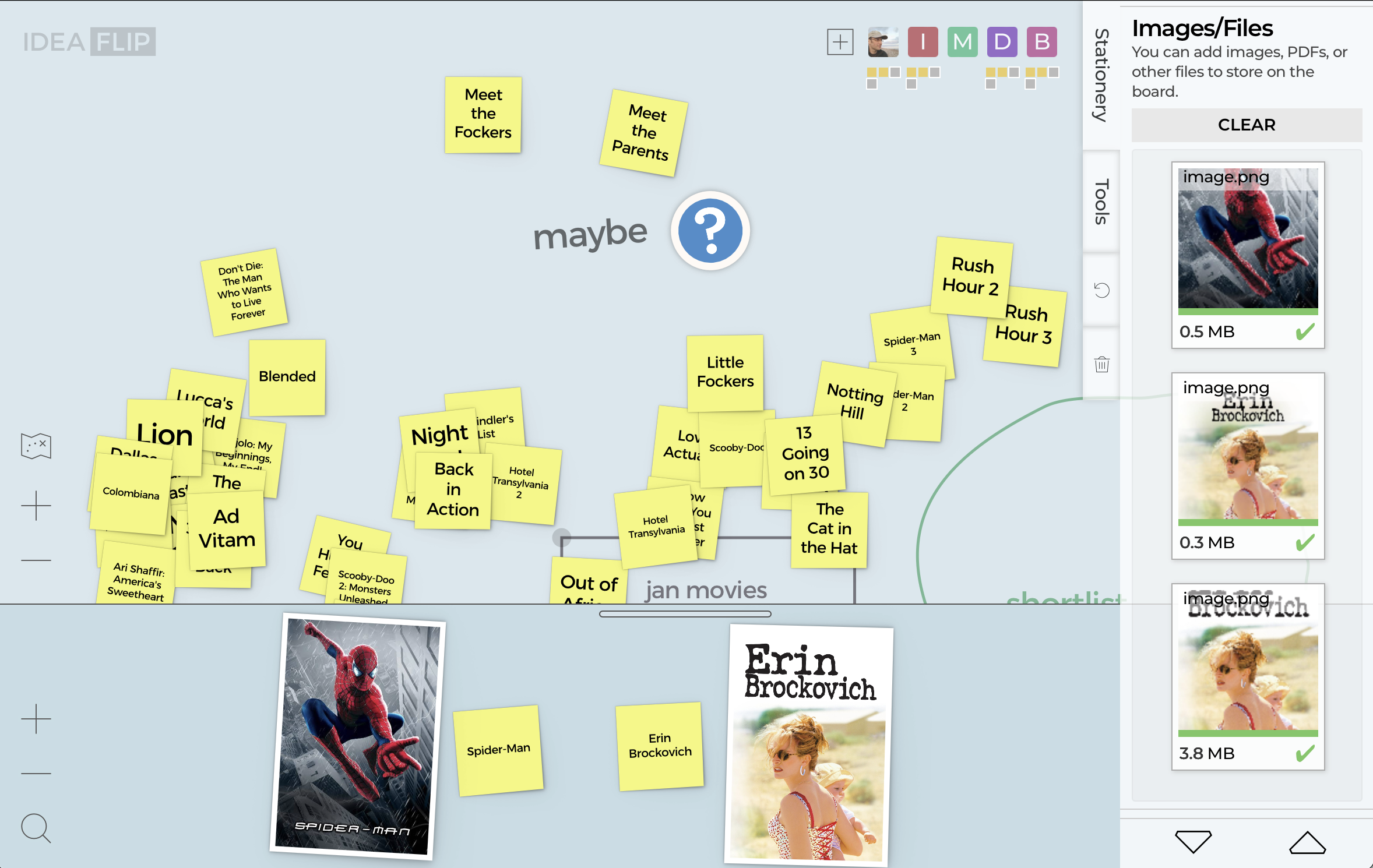
Gather Round and Tidy Up
But before we do that, the shared board has all the other movies still on it - let's take a moment to tidy these up a bit first.
Oh! What did I hear you say? There's a final launcher function that might help with this? Yes! That's right! Incredible. Who'd've thought.
So, as before - let's adjust the size of the movies group (grey ractangle) by dragging the control points on the opposite corners until they surround all the movies that aren't on the shortlist. Tapping on the edge (or name) of the group will then select the group and all the notes that it contains or touches.
This will cause the launcher rocket icon to appear, which this time we select the GATHER feature. Gathering will just move all the notes into a single pile - neat!
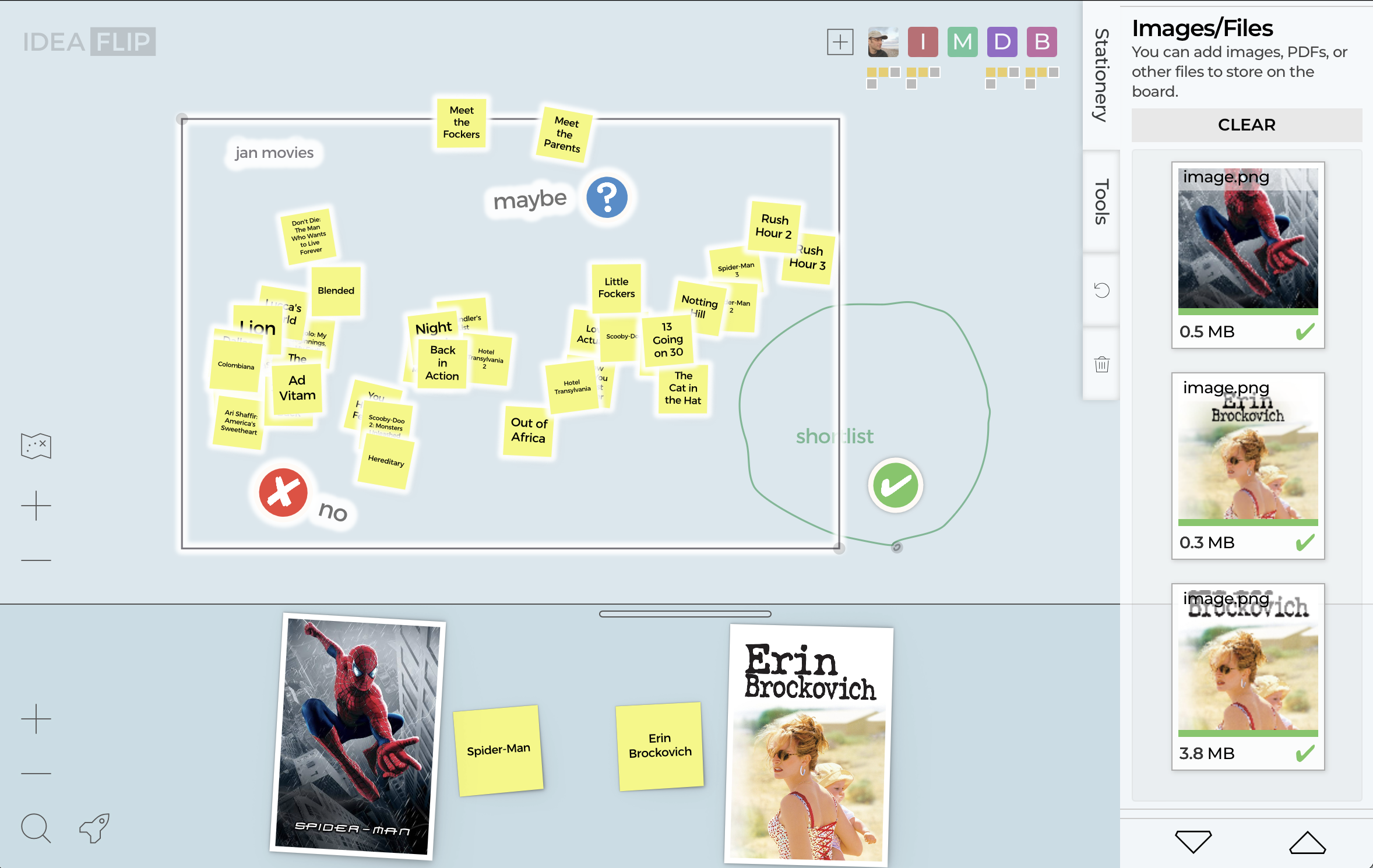
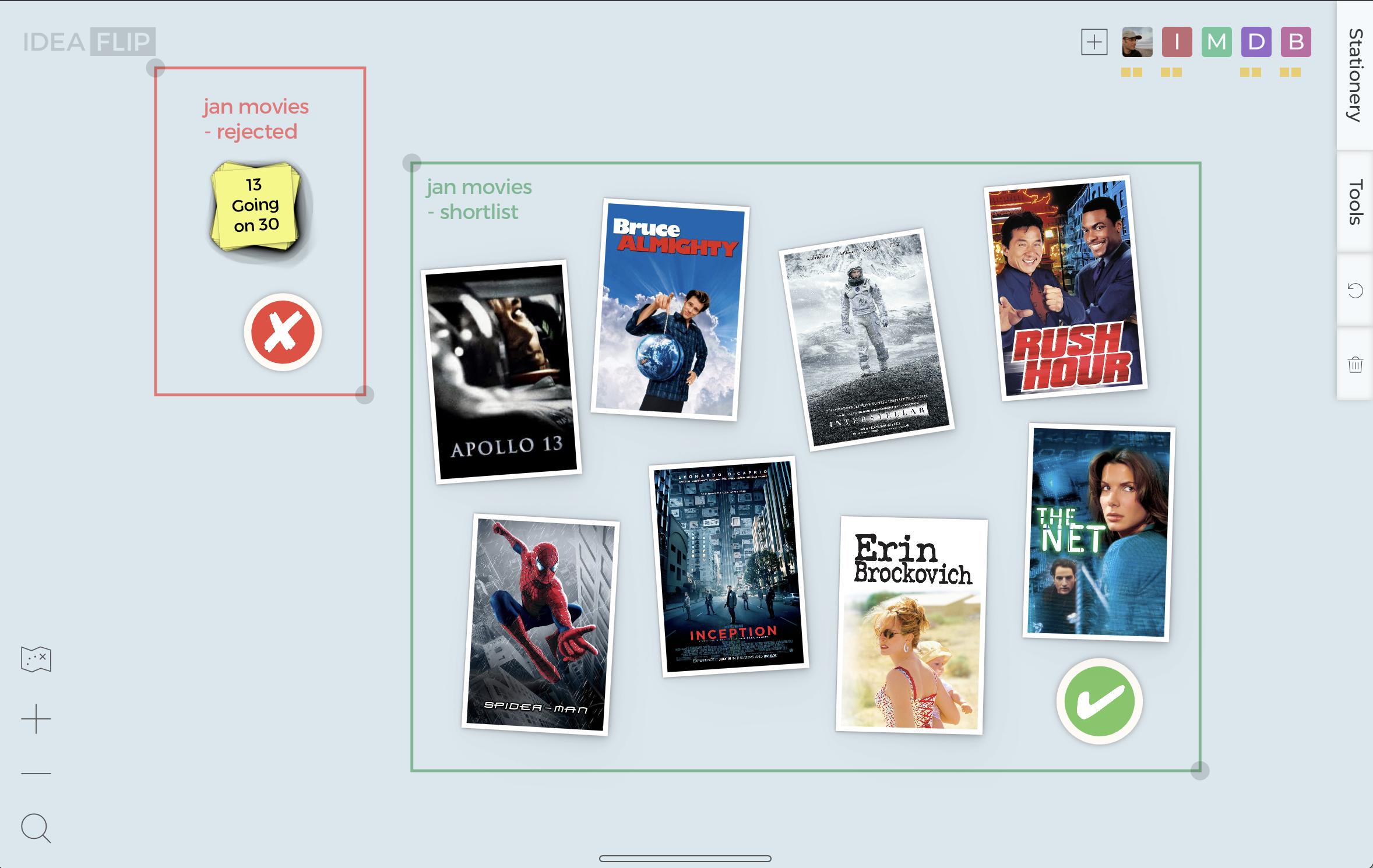
So after rearranging the groups a bit, everyone can drag their posters onto the shared board. Great! That's this month's viewing - sorted.
Rocket Boost Your Sessions with Ideaflip
Hopefully that's given you a good idea of what the launcher can be used for:
- Gather into a Pile - bring order to your sticky notes fast
- Collaborative Swipe Sort - rapidly prioritise, with your team
- Deal to Scratchpads - quickly and fairly divide up work
With each of these features being designed to make it easier to work with larger numbers of notes by helping to reduce the mental load and bring focus back to the task in hand.
So now, there really isn't any such thing as having too many good ideas.
We'd love to know how you make use of the launcher - if you come up with something especially effective or fun - do let us know!
And, when you're next wondering what to stream, it might be time to introduce your friends to Ideaflip...
Now, where's that popcorn? 🍿🍿🍿
 Online sticky notes to plan, organise and brainstorm with your team remotely